Your Profile
The GRIN-Global database may be used for searches and finding information without logging in or establishing a profile. However, when making a germplasm request, you must have established (created) a profile and you must be logged in using that profile.
Note: After a profile has been successfully created, it cannot be deleted. (It can be updated.)
Creating a New Profile
Creating a new profile is a 2-step process. You first create a username (using your email address) and a password. Many organizations using GRIN-Global expect users to supply their email address as their user name. Password rules may differ, but typically the expectation is a password using at least 12 characters.
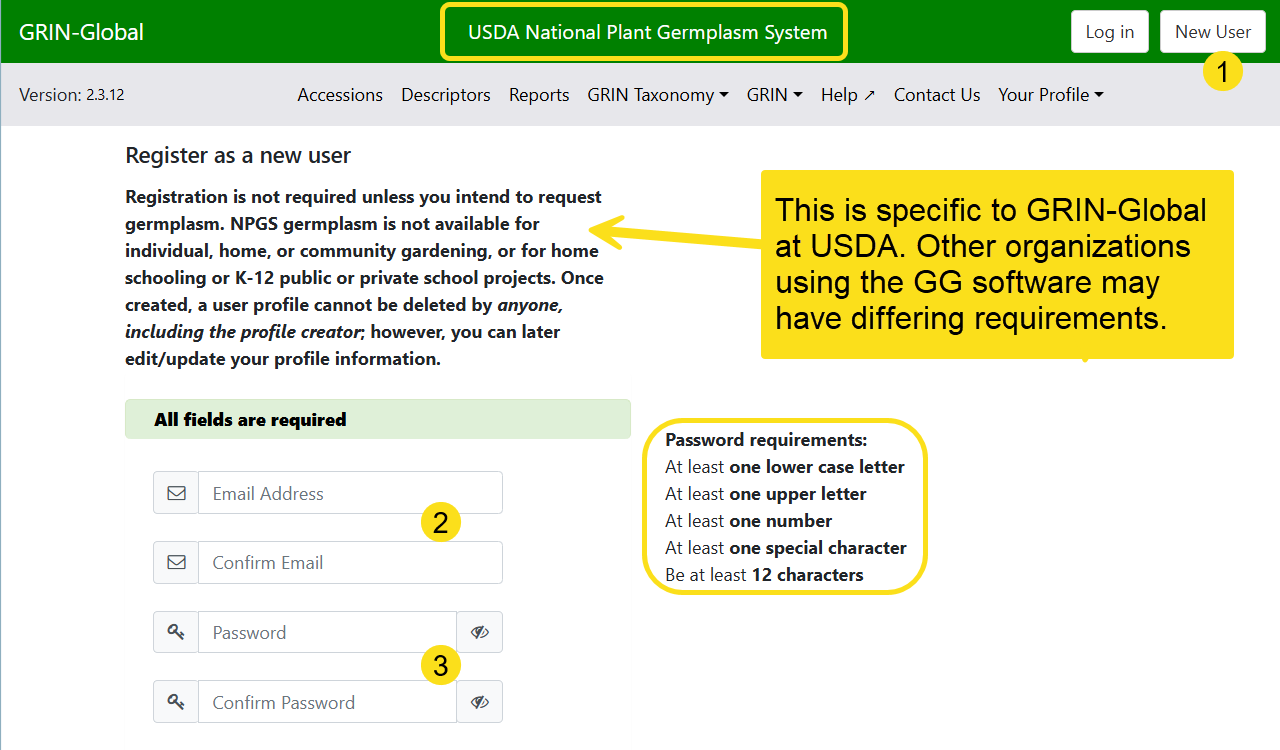
After you successfully create the username, a screen will display prompting you to input specific details such as your name, organization name, and addresses. (See below.) Ensure all information is correct, because it is used by GRIN-Global (GG) when you submit your requests. You can edit at any time, but when a request has been submitted, GG uses the information that is currently in your profile. If you do not complete the profile, your germplasm request will fail and you will receive some sort of warning message.
Editing a Profile
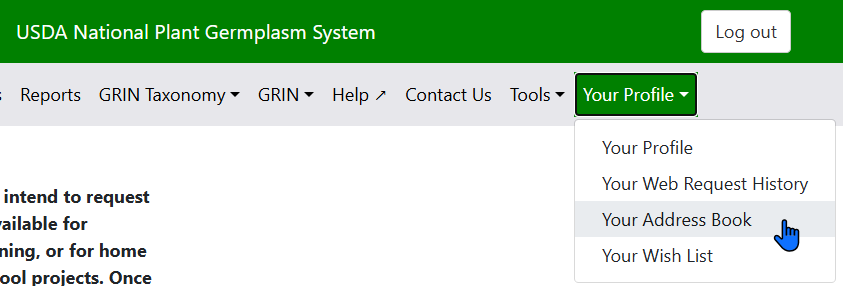
When logged in, use the GG main menu's Profile item to select one of its options. Using the respective option, you can edit your password, review your web request history, add additional shipping addresses, and so on. When logged in, you can also establish a wish list, check past orders, or even check the status of your open germplasm requests. Your password is also managed under the Your Profile option.
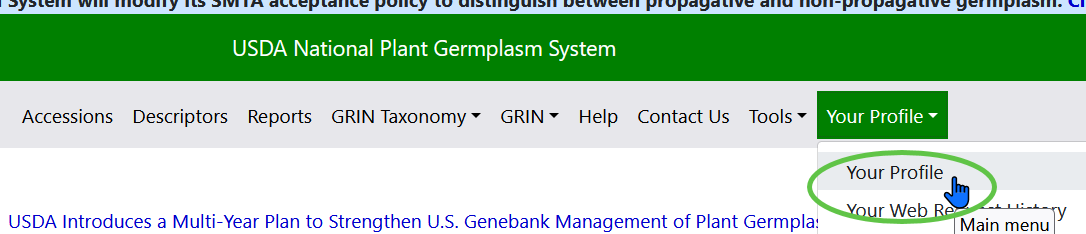
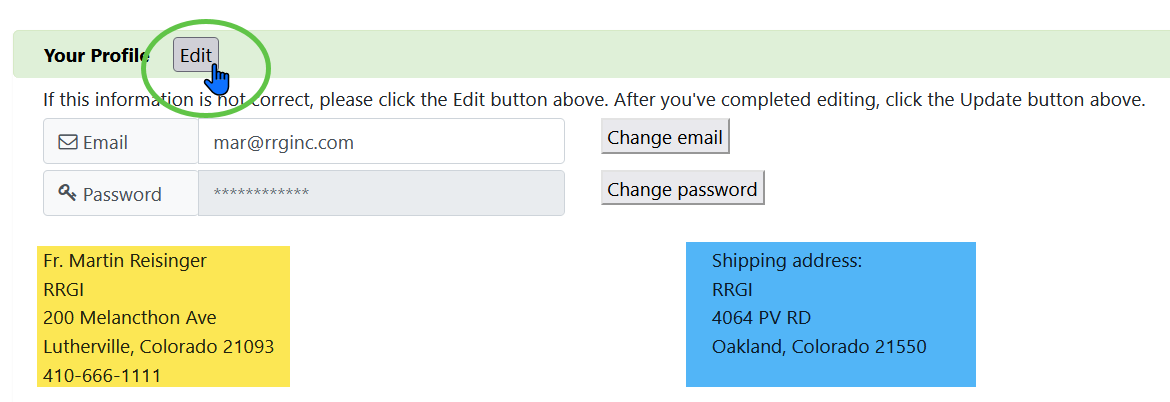
Scroll down in the Profile page to add or edit your primary and shipping address information. (For many users, these may be the same.)
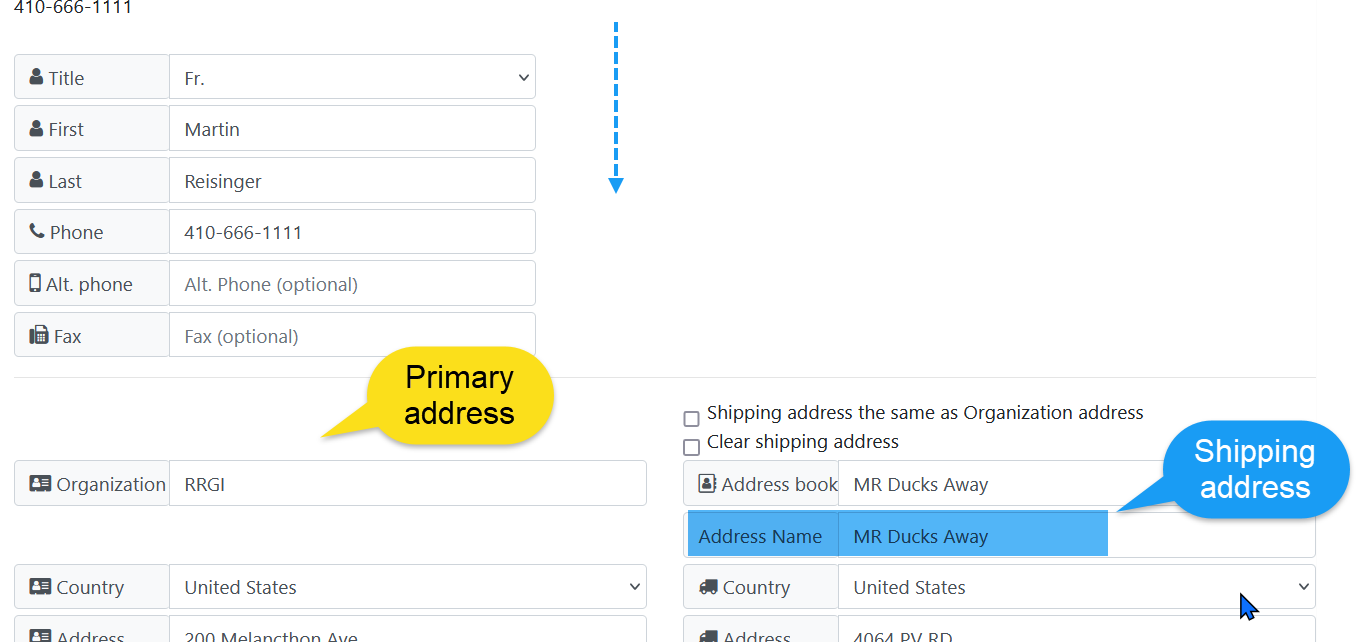
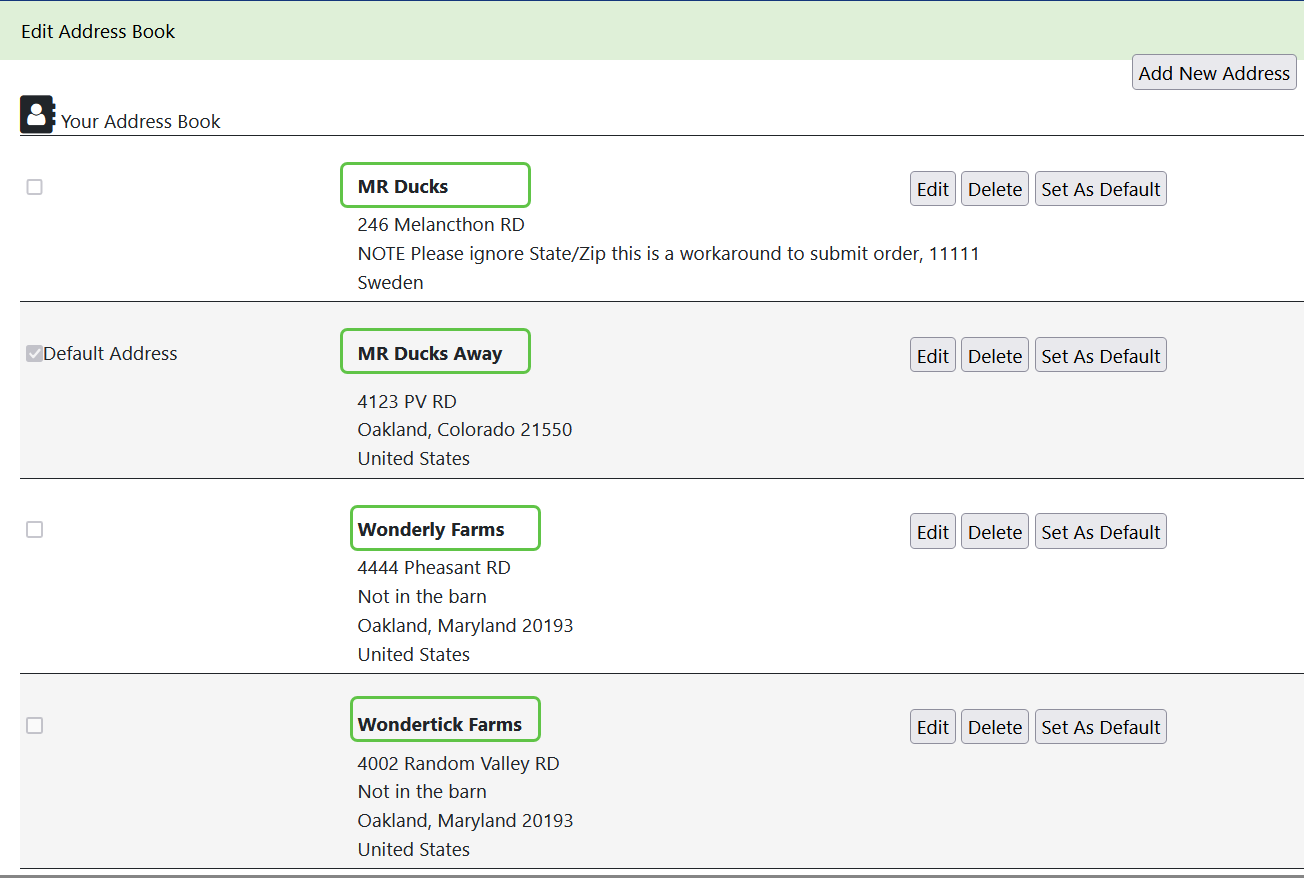
Note: The Address Name should be simple. (This field sometimes confuses users.)
Every user can have multiple shipping addresses. These are stored in the User's Address Book; each address has a name. If you create a new shipping address, you might consider selecting the new address, logout, and then log in again to facilitate using your new address.